|
|
|
|
Using Built-in File Management Operations
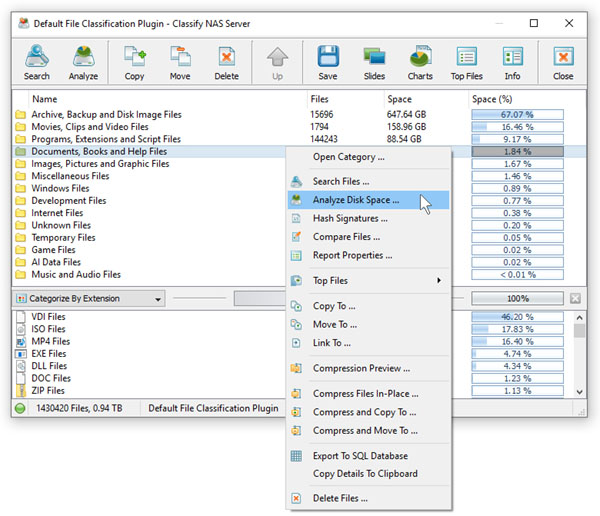
DiskSorter provides the user with a number of file management operations such as file copy, move, compress and delete, which may be performed on one or more selected file categories. For example, in order to copy all types of image files to a directory, select the 'Images and Picture Files' category in the file classification results view, press the right mouse button and select the 'Copy To Directory' menu item. 
On the file copy dialog, enter a destination directory to copy files related to the selected file categories and press the 'Start' button. DiskSorter will recreate the selected hierarchy of file categories in the destination directory and copy all files related to the selected file categories to appropriate subdirectories in the destination directory. 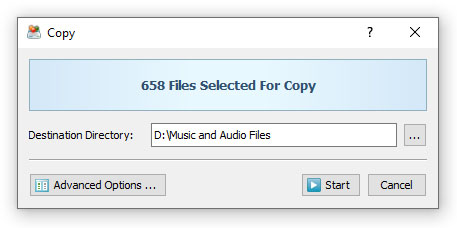
In order to move files related to a file category to another location, select the file category in the file classification results view, press the right mouse button and select the 'Move To Directory' menu item. In addition, the user is provided with the ability to delete all files related to one or more selected file categories. 
Another useful file management operation provided by DiskSorter is the ability to compress files related to one or more selected file categories. DiskSorter uses the GZ file compression method, which is applied to individual files making it possible to selectively compress specific types of files, which are using a significant amount of disk space. In addition to the in-place file compression operation, DiskSorter provides the ability to copy and compress files in the destination directory and move and compress files in the destination directory. Advanced File Management Operations Sometimes, it may be required to perform file management operations on groups of files matching multiple user-specific criteria. For example, let's assume that the user needs to copy all types of documents that were modified yesterday to another directory. In order to perform such an operation, classify one or more disks or directories using the default file classification plug-in and select the 'Categorize By Modification Time' file categorization mode. 
On the file categories view, select the 'Last Modified Yesterday' item, press the right mouse button and select the 'Apply Selected Filters' menu item. DiskSorter will filter file classification results and show in the top-level view categories of files that were modified yesterday. Now, select the 'Documents' file category in the file classification results view, press the right mouse button and select the 'Copy To Directory' menu item. 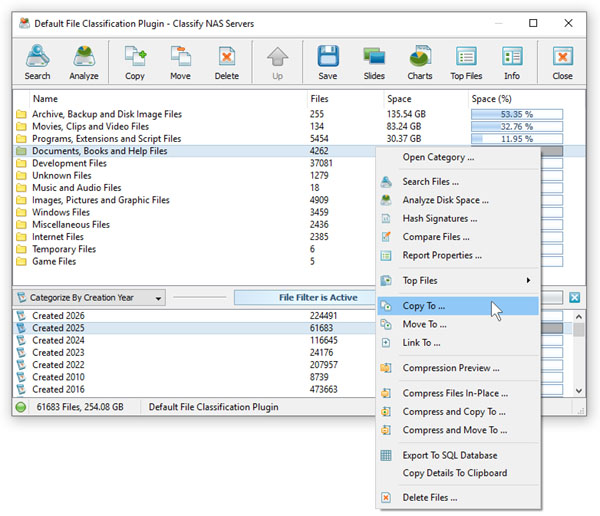
When a file filter is active, all file management operations such as file copy, move, compress and/or delete will be performed on files matching the selected file filter. Moreover, the user is provided with the ability to control advanced file copy, file delete and data wiping options for each specific file management operation.
|
DiskSorter News
|